
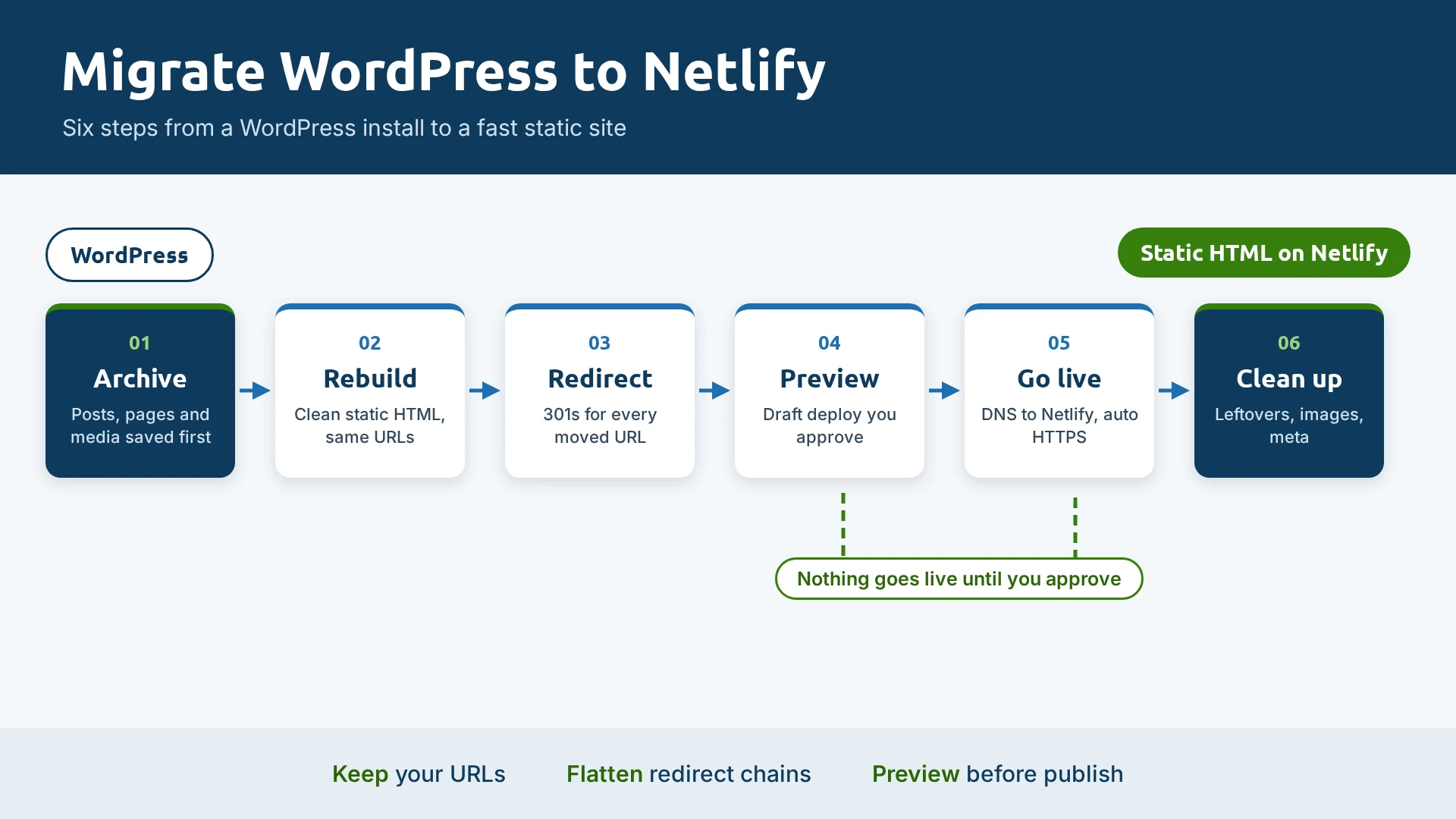
I moved two WordPress sites to plain static HTML hosted on Netlify, and I had a Grok Bot do most of the work. This is the process I'd follow again, step by step, including the parts that went wrong.
If you want the why first, I covered the day-to-day side in headless CMS with static HTML and AI. This post is the how-to. It assumes you have a WordPress site, a Netlify account, and access to your domain's DNS.
The migration by the numbers
Here is what the two moves involved. The first site was a small blog. The second was a larger business site with years of posts.
media files (151.9 MB) archived from the smaller site
pages rebuilt as static HTML on the larger site
redirect rules rebuilt from the old host on the larger site
of the Bot's working time from first crawl to live site
That last number surprised me. The Bot spent about 1 hour 50 minutes on the larger site. My time went into decisions: which posts to keep, where redirects should point, and when to flip DNS.
What changes when you leave WordPress
Before you start, know what you're giving up and what replaces it.
| Job | On WordPress | On Netlify |
|---|---|---|
| Pages and posts | Rows in a database, rendered by a theme | One folder per URL with an index.html file |
| Images | Media library in dated upload folders | Files in an images folder, deployed with the site |
| Redirects | A plugin or server rules | One plain-text _redirects file |
| Contact form | A form plugin | A small serverless function |
| SEO tags and schema | An SEO plugin | Written into each page's head |
| Previews | Preview button in the editor | A draft deploy with its own URL |
| Rollback | A backup plugin or host snapshot | Republish any earlier deploy |
| Editing | Admin panel and page builder | Ask the Bot, review a preview, approve |
If you'd rather build the files by hand, my guide on how to build a static website covers the folder structure and the _redirects format.
The flow at a glance
- 1Archive WordPress
- 2Rebuild as HTML
- 3Redirects and SEO
- 4Draft preview
- 5Flip DNS
- 6Clean up
The migration, step by step
Give the Bot one step at a time and check its report before moving on. Each of these was a single plain-English request.
Archive everything first
Pull every post, page and media file into an archive kept apart from the new site. On the smaller site that was 25 posts, 8 pages and 358 media files. You'll want it when someone asks about a post you didn't bring over.
Decide what comes over
Have the Bot list each post with a recommendation: bring it over, refresh it, merge it or leave it behind. You make the call. Posts you retire get a 301 redirect to a related page or the blog index.
Pull the content
A small site can come out through the WordPress REST API. A large one is easier to crawl as a full mirror. My larger crawl returned 291 HTML pages, many of them archive and duplicate pages that never came over.
Rebuild each page as clean HTML
Strip out the WordPress runtime: wp-json links, comment markup, the emoji script and plugin scripts. Each page should load on its own, with its CSS and images coming from your site.
Keep your URLs
Every post stays at its old path, in a folder of the same name. This one rule saves most of your rankings. See post URL structure for why.
Bring images home
Copy images into the new site and rewrite links that point at the old host. On one site, 29 image links still pointed at the old server. Keep the existing image paths where you can, since moving images resets their indexing.
Rebuild redirects
Export the old host's redirect rules, flatten any chains so each old URL goes straight to its final page, and check every target exists. Ten of my 72 rules pointed at pages that were gone, so I decided each one.
Replace plugins with plain parts
Titles, meta descriptions, canonical tags and JSON-LD go into each page's head. The sitemap and robots.txt become static files. The contact form becomes a small Netlify function that sends entries to your CRM, with a hidden honeypot field to catch spam.
Deploy a draft preview
The Bot deploys to a unique draft URL and you click through it. Nothing goes to production until you say so.
TipArchive before you crawl, not after. The WordPress API only returns what's public. On one site it reported 485 media items, but only 358 were downloadable. The rest needed a logged-in export or SFTP access, and drafts couldn't be fetched at all.
Going live on Netlify
Once the preview looks right, the Bot publishes to production and you point the domain at Netlify.
Add both domains in Netlify
Add the www and bare versions of your domain to the Netlify site and pick one as primary.
Update DNS
Set the records Netlify shows you: a CNAME for www pointing at your netlify.app address, and an A record for the bare domain.
Wait for HTTPS
Netlify issues the certificate on its own once DNS resolves. On my larger site the www record lagged, so I rechecked it an hour later.
Keep the old host for a few days
Leave WordPress running so you can roll back by switching DNS. Shut it down after the new site has been stable for a while.
Watch outCheck what you deployed as well as what you built. My first deploy of the larger site included the build scripts, which made them public. The fix was to deploy only the site folder. Deploy a clean copy without hidden files, notes or scripts.
Cleaning up the leftovers
The site was live, but WordPress hadn't fully left. These are the leftovers I found in the first week.
It still looked like WordPress
Technology detectors still reported WordPress, PHP and an SEO plugin, because of old class names and a schema label. Renaming them fixed it with no change to the layout.
Duplicate pages
A mirror crawl picks up the same page under several URLs. We deleted 8 duplicates, redirected them, and updated 39 internal links. A later pass found 4 more.
Dead links
21 links pointed at pages that no longer existed anywhere. The Bot removed each link and kept the anchor text so the sentences still read well.
Heavy images
Compressing the 10 largest images took them from 6.3 MB to 3.3 MB. Lazy loading, width and height attributes, and long cache headers came next.
After that I ran a pass on titles and meta descriptions, added FAQ schema where it fit, and added lastmod dates to the sitemap.
Launch checklist
Run through this before and right after you flip DNS.
- Every old post URL returns the page or a 301, not a 404
- No redirect chains, and every redirect target exists
- No image or link still points at the old host
- Each page has its own title, meta description and canonical tag
- The sitemap lists only live pages, and robots.txt points to it
- The contact form sends a test entry to your CRM
- Analytics records a visit
- Both www and the bare domain load over HTTPS
- Build scripts and notes are not reachable on the live site
- The old WordPress install is archived before it's shut down
Managing the site afterward
With no admin panel, every change is a request to the Bot. It edits the files on its own computer, deploys a draft, and sends me the link. I reply "publish" when it's right. I explain how I set up my Bots in What Is Grok Bot?
A few habits keep it running smoothly:
- Back up the files to a dated folder before any meaningful change.
- Re-check the edited files right before a production deploy. Once, an earlier change had quietly reverted, and the check caught it.
- Keep the function's dependencies installed. When they went missing, the contact form stopped working until they were reinstalled.
- Run a weekly routine that deletes old deploys and keeps the last 5.
- Check text contrast after any color change. My lowest pair after re-shading every post was 4.58:1, above the 4.5:1 minimum.
TipGive the Bot one standing rule: draft preview first, production only after you approve. It makes every change easy to review and easy to undo.
Frequently asked questions
Will I lose rankings when I move from WordPress to Netlify?
Not if your URLs stay the same. Keep each post at its old path, 301 any URL that has to change, and keep image paths where you can. One old URL on my blog returned a 404 after launch, and a one-line redirect fixed it.
How long does the migration take?
On my larger site, the Bot's working time from first crawl to live site was about 1 hour 50 minutes. DNS changes and cleanup over the next few days took longer than the migration itself.
What replaces WordPress plugins?
Mostly nothing. SEO tags, schema, redirects and the sitemap are plain files. A contact form needs a small serverless function, and analytics is a script tag.
Can I still edit the site without coding?
Yes. You describe the change to the Bot, review a draft preview and approve it. There is no visual editor, so you review the result instead of dragging blocks around.
Do I need to keep WordPress after the move?
Only for a few days as a rollback option. Archive the posts, pages and media first, then shut it down.
The bottom line
Moving off WordPress is mostly careful bookkeeping: archive, keep your URLs, fix redirects, preview, then launch. A Bot handles the bookkeeping. You make the calls on what stays and what goes.