

Structured data is one of the many things that can improve a website’s rankings. While there are many types of structured data, we’ll focus on the types used for blog posts.
We’ll also provide some ideas about how you can increase the authority of your blog posts’ structured data.
First, let’s take a look at what structured data is.
About Structured Data
Think of structured data as “under the hood” information about your blog post for search engines.
As you probably know, HTML stands for HyperText Markup Language. Structured data is markup that can be added to your blog post’s HTML.
Just like the HTML that underlies every blog post, structured data markup is invisible to human readers (unless they decide to view your page source) — but it is visible to search engine bots that crawl your page. It gives search engine bots information that is not visible on the surface.
Structured data markup elements, as specified by Schema.org, can be used in many different ways, including for Organizations, Products, Events, LocalBusiness, Reviews, Videos, and FAQs.
Structured data is added to the head section of your post in a format called JSON-LD (JavaScript Object Notation for Linked Data). Technically, JSON-LD is what’s known as an HTML script tag.
Schema.org provides a validator that generates structured representations of any JSON-LD it finds. Structured representations are more easily readable by humans than scripts, and they also display any warnings or errors.
It’s important to note that just because structured data shows up in the Schema.org validation tool, it doesn’t always mean that Googlebot or other search engine bots will recognize it as structured data.
The to see what Google recognizes is done by using Google’s Rich Results Test tool.
Your Site Name in Google Search
Here is a simple use case for structured data presented by Martin Splitt of Google in the YouTube series ‘SEO Made Easy.’
How to Add Structured Data to Blog Posts
Here is how to automatically add structured data to posts on the two most used blogging platforms.
Structured data can be manually added, but that introduces a maintenance component.
WordPress
The Yoast SEO plugin is the most commonly used way to add structured data to WordPress posts. Yoast SEO automatically generates a detailed structured data script for each blog post.
If you’re not a Yoast user, the Schema plugin can be used to add BlogPosting markup to your blog.
Some WordPress themes generate structured data. Since we use Yoast SEO, we disabled the structured data that our theme auto-generates.
Wix
Wix provides instructions for how to add structured data to every post automatically.
Compared to Yoast, Wix generates a relatively compact blog post markup — about 30 lines compared to Yoast’s 200+ lines.
Here’s an example of Wix post markup from this blog post.
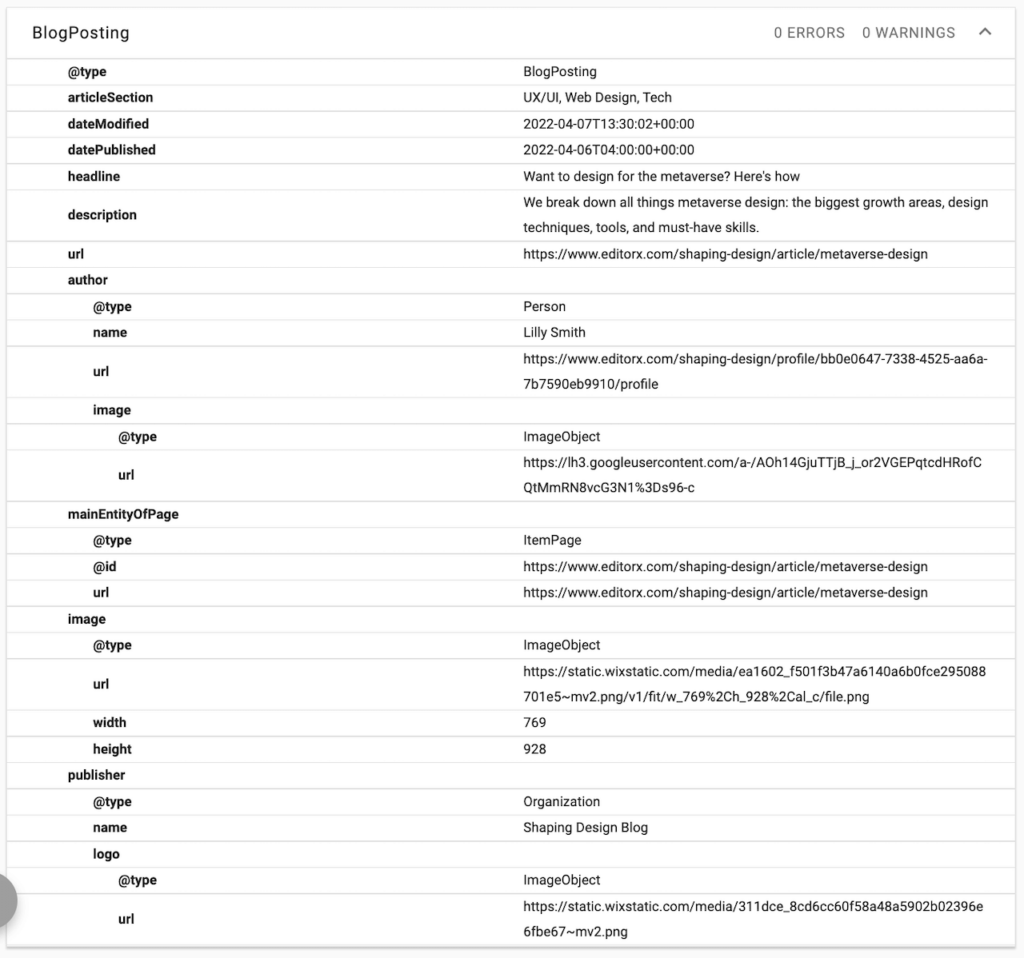
Let’s look at the structured data sections common to Yoast SEO and Wix.
WebPage
Yoast SEO has a global and per-post selector for Article Type. Selections include ‘Article,’ ‘Blog Post,’ ‘News Article,’ and ‘Scholarly Article.’
Several WordPress sites we manage display the generic ‘WebPage’ type, no matter what Article Type is selected in Yoast. (One of the vagaries of WordPress is that plugins can stomp on one another).
| Label | Contents |
| @type | WebPage |
| @id | https://demo.crmswitch.com/inbound-marketing/wordpress-page-experience/#webpage |
| url | https://demo.crmswitch.com/inbound-marketing/wordpress-page-experience/ |
| headline | WordPress Page Experience: Retaining Beauty While Reducing Bloat |
| datePublished | 2022-04-09T12:01:10+00:00 |
| dateModified | 2022-04-16T13:54:06+00:00 |
| description | How can you get a page builder look on your WordPress site, yet achieve a performance score that makes Google happy? |
| wordCount | 703 |
| thumbnailUrl | https://demo.crmswitch.com/wp-content/uploads/2022/04/wordpress-page-experience.png |
| articleSection | SEO |
| inLanguage | en-US |
The date values are essential, as these inform the search engine bot how recently the content was created or updated.
The articleSection value reflects the blog post’s category. This is essential information for search engines, especially when the category is not part of the URL.
The Blog Post’s Author
This part of the mockup gives the search engine bots some author information not found on the human-readable page.
| Label | Contents |
| author | |
| @type | Person |
| @id | https://demo.crmswitch.com/#/schema/person/0ceb6596635cc2b0b2923a70e2e67a0a |
| name | John Abbott |
| sameAs | https://www.linkedin.com/in/jabbott/ |
| sameAs | https://twitter.com/jabbott |
| sameAs | https://www.wikidata.org/wiki/Q123456789 |
| image | |
| @type | ImageObject |
| inLanguage | en-US |
| url | https://secure.gravatar.com/avatar/d8ee6c2281f85fadaf886c509f3dbe4e?s=96&d=mm&r=g |
| contentUrl | https://secure.gravatar.com/avatar/d8ee6c2281f85fadaf886c509f3dbe4e?s=96&d=mm&r=g |
| caption | John Abbott |
The Author sameAs Property
The ‘sameAs’ property does not appear in Wix’s ‘BlogPosting’ markup.
In WordPress, Yoast automatically uses some of the information it finds in the Contact section of the WordPress User Profile for the post’s author. This information is added to the markup with the Schema.org ‘sameAs’ property.
According to Schema.org, the ‘sameAs’ property is the “URL of a reference Web page that unambiguously indicates the item’s identity. E.g., the URL of the item’s Wikipedia page, Wikidata entry, or official website.”
TIP: The author’s ‘sameAs’ URLs may be an authority signal to the search engines.
Therefore, be sure to add the author’s LinkedIn page to their WordPress User Record at a minimum. Add their X (formerly Twitter) handle if they are active on X.
If the author has a Wikidata page, adding that to the Wikipedia field in the author’s profile is probably okay to get the URL onto the schema.
If you have an author with a Wikipedia page (such as your CEO), that could be a bonus for authority.
The Author’s Image
WordPress doesn’t have a way to upload an image of an author to the author’s user profile. The user has to create a WordPress.com account and upload a headshot for the image to appear on a WordPress.org site as a Gravatar.
However, the Gravatar image file is a reference point for the search engines.
The author’s headshot can be easily uploaded to Wix from a local drive.
The Post’s Image
An image section describes your blog post’s primary image. If you have a featured image, it will be the first image found.
| image | |
| @type | ImageObject |
| @id | https://inbound.crmswitch.com/page-performance-score/#primaryimage |
| url | https://inbound.crmswitch.com/wp-content/uploads/2018/11/wordpress-page-speed.png |
| width | 1280 |
| height | 720 |
A best practice is using featured images at least 1,000 pixels wide. But don’t make your images too large, as that can negatively affect your post’s SEO.
Publisher and Logo
Here is a simple Wix-like version of the section that informs search engine bots about the organization’s website that is hosting the blog content.
| publisher | |
| @type | Organization |
| name | CRM Switch |
| logo | |
| @type | ImageObject |
| url | https://inbound.crmswitch.com/wp-content/uploads/2021/04/crm-switch-logo.png |
Yoast SEO takes this section further than Wix by nesting it within a broader ‘isPartOf’ property and ‘WebSite’ type. The plugin also adds company-level ‘sameAs’ references, such as the company’s LinkedIn and Facebook pages.
If your organization has a Wikipedia page, that could be an authority bonus for your blog content.
Add your company’s social profiles under Social – Yoast SEO > Account tab > Organization social profiles so the schema generator will recognize them.
Conclusion
The schema and blog post markup subject is more profound than what we have covered here. If you examine Yoast’s markup, you’ll see many more sections.
It is difficult to answer whether Wix’s compact approach or Yoast SEO’s detailed markup is better for SEO.
But most will agree that SEO should have some level of blog post structured data rather than none.